

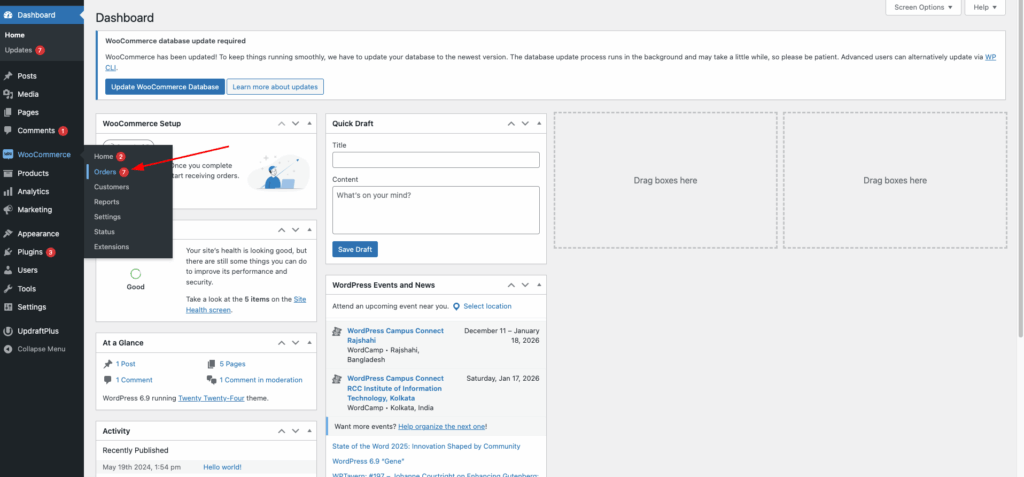
Assuming that you have Filter Orders by Product (FOBP) installed and activated on your website, navigate to the WordPress admin dashboard > WooCommerce > Orders.
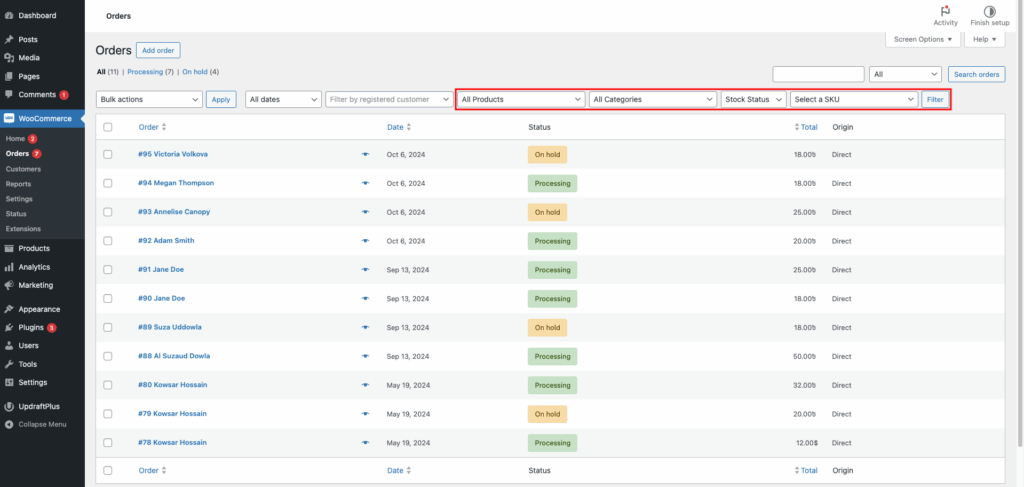
Now, you’ll be able to see the following filter options marked with a red box.
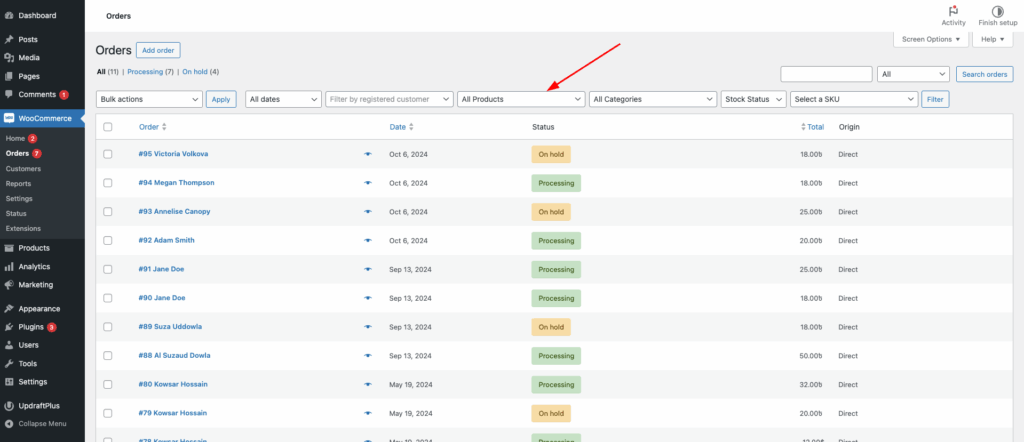
Filtering using the All Products dropdown menu (free option):
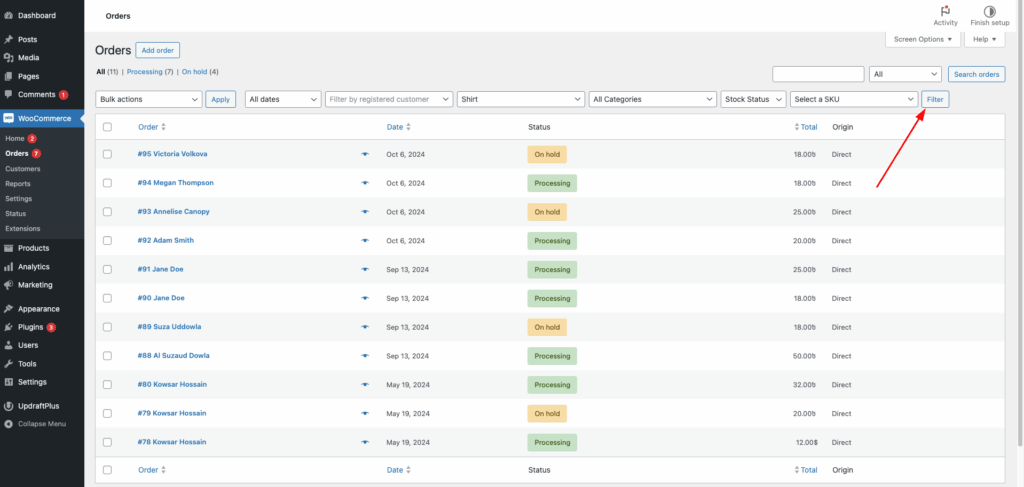
Let’s select the All Products dropdown menu.
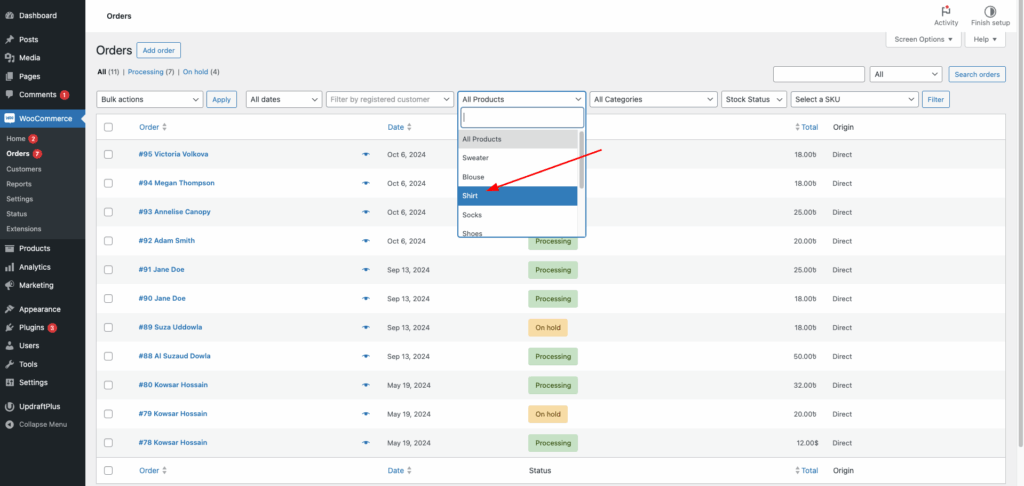
You’ll be able to choose the products you have on your website. Let’s select Shirt from the dropdown menu items.
Hit the Filter button.
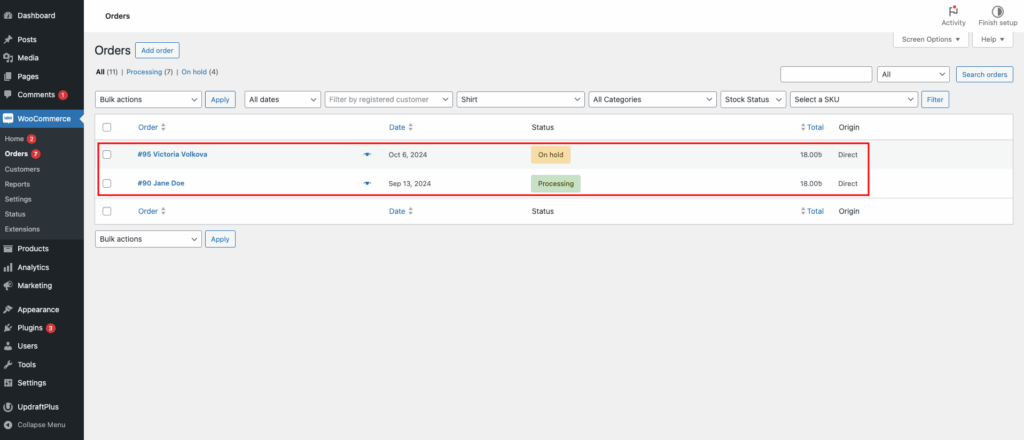
Now, you’ll be able to see the filtered orders based on the parameter ‘Shirt’.
Filtering WooCommerce orders with Categories (pro feature):
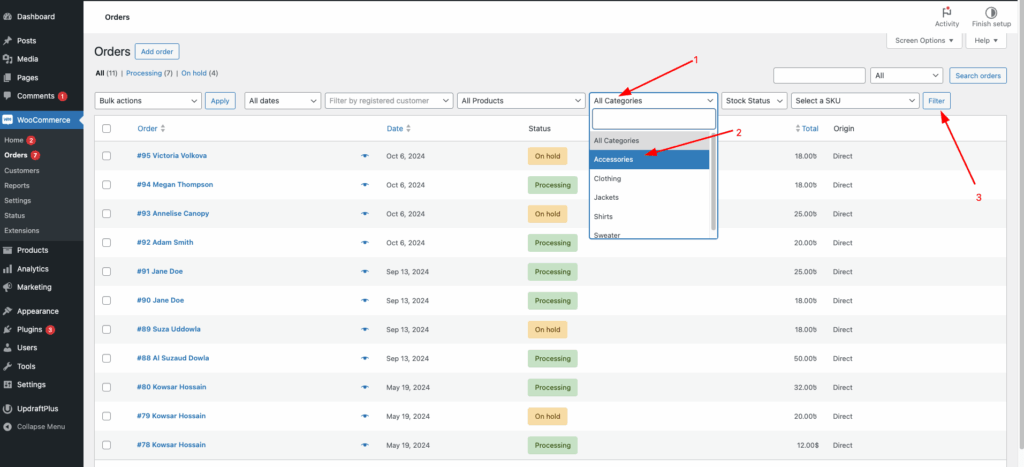
Similarly, you can use the product categories to filter your orders. Select All Categories dropdown menu > Select Accessories (or any option you choose according to your preference).
Finally, hit the filter option.
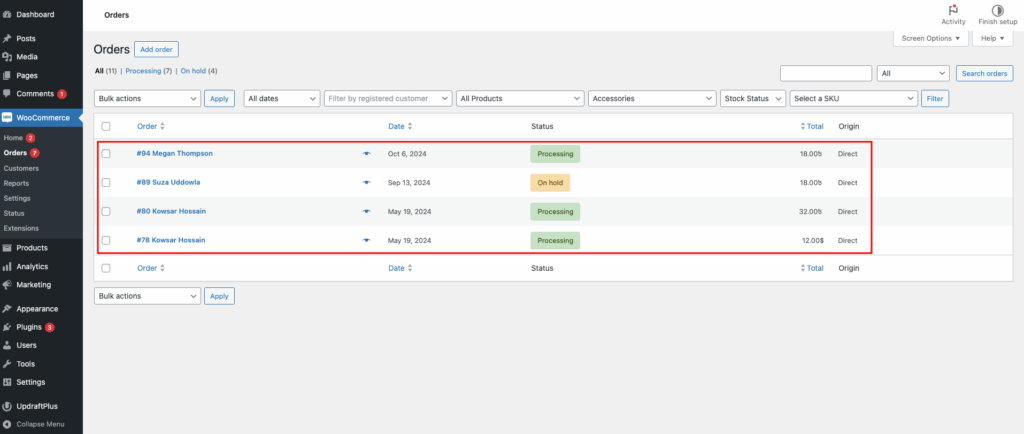
Now, you will see the WooCommerce filtered orders by the Accessories category.
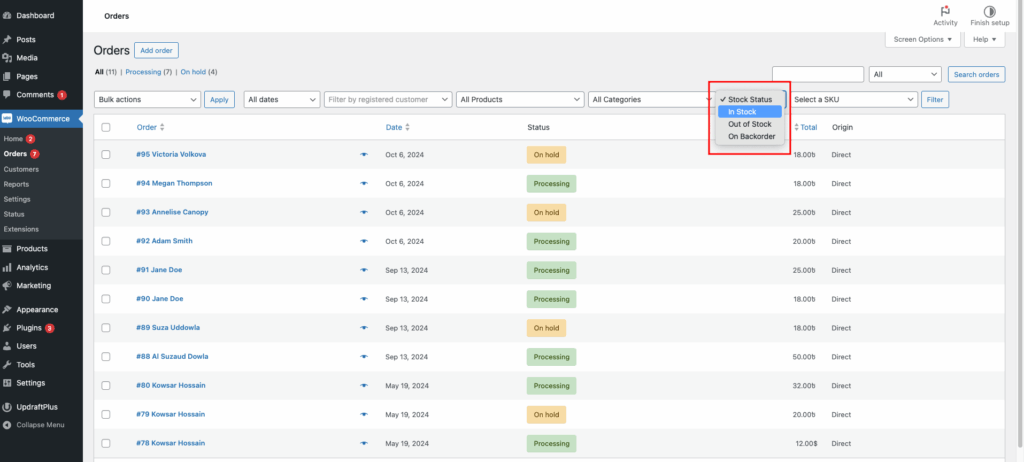
Filtering WooCommerce orders using Product Stock Status (pro feature):
Use the Stock status such as In Stock, Out of Stock and On backorder options to filter your WooCommerce orders.
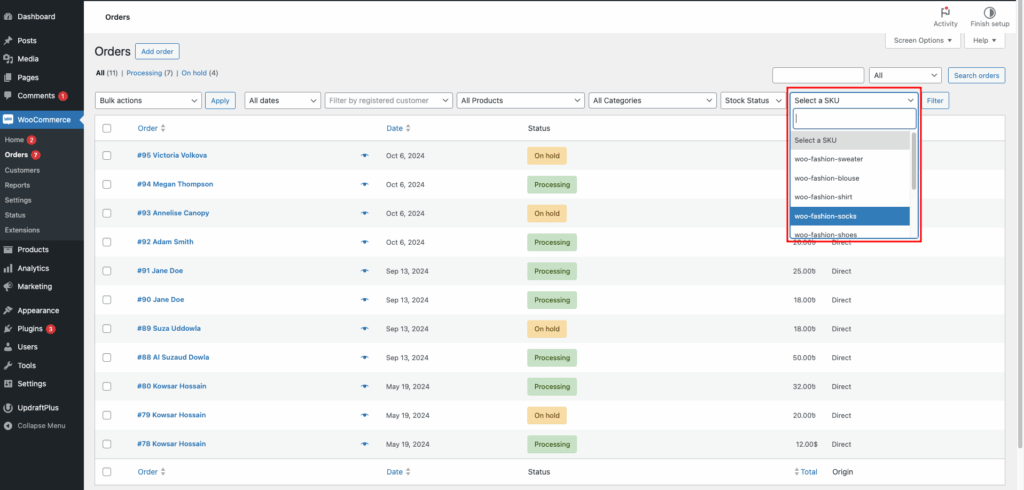
Filtering WooCommerce orders using a Product SKU (pro feature):
Find your desired product orders using the SKU dropdown option marked with a red rectangle.
This is how you can use the Filter Orders by Product.